Surf forecast · e-ink display

User Guide
Everything you need to get The Slab — your Yeah Buoy! hardware, hand-built on premium walnut — set up, understand what it's showing, and fix it when it misbehaves.
Everything you need to get The Slab — your Yeah Buoy! hardware, hand-built on premium walnut — set up, understand what it's showing, and fix it when it misbehaves.
Follow these steps in order. From plugging in The Slab to a cycling forecast: about two minutes.
Search for Yeah Buoy! on the App Store, or visit zonelab.app/yeahbuoy.
Plug The Slab into USB-C power or make sure the battery is charged. On first boot a lone QR code appears on the e-ink screen — that's intentional. The three LEDs cycle Red → Yellow → Green about once a second while it waits for you.
The app launches into a five-step setup wizard:
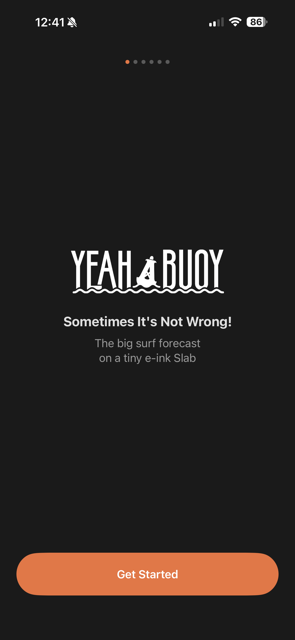
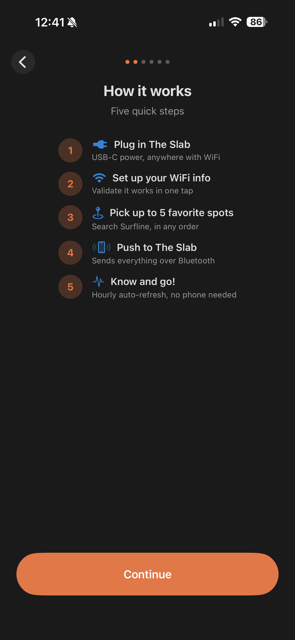
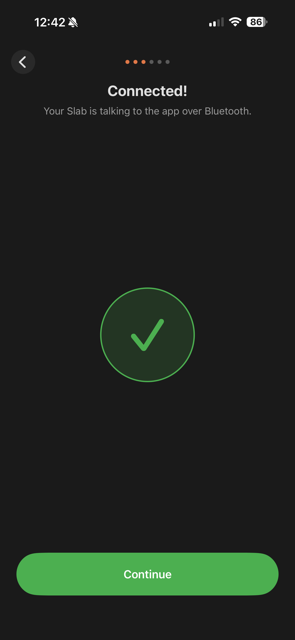
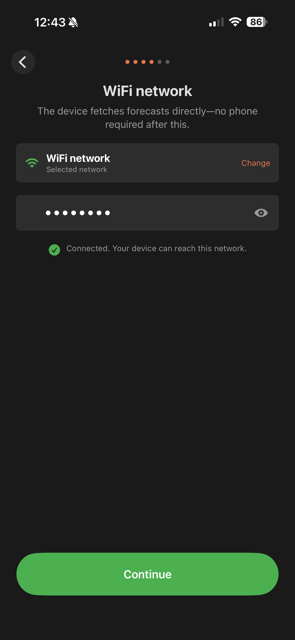
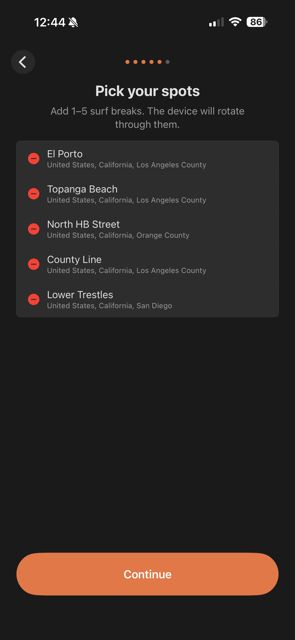
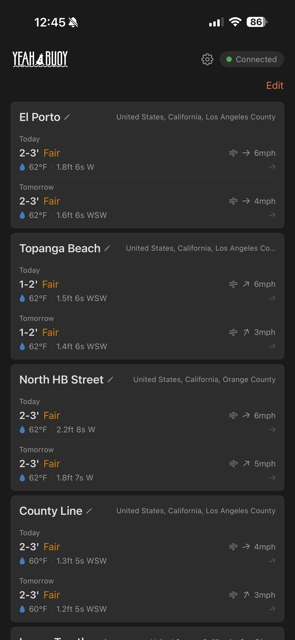
After setup the device connects to WiFi, syncs time, and fetches forecasts from Surfline. This takes about 20–30 seconds. You'll see "Connecting to WiFi…" then "Fetching forecasts…" on the display. Once data loads, the forecast starts cycling automatically.
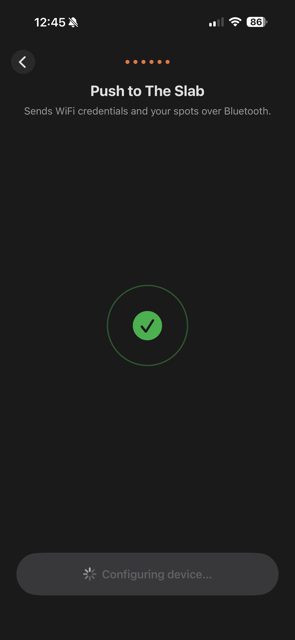
Yeah Buoy! refreshes forecasts every hour over WiFi — no app needed after the initial setup. If you move the device to a new location or change your WiFi, just open the app again and push updated settings.
The display shows three lines of forecast data. It cycles through each spot automatically — today's forecast first, then tomorrow's, then on to the next spot.
250 × 122 px e-ink display
The spot's display name (or custom label) and whether this is today's or tomorrow's forecast.
Wave face height in feet, surf quality rating, wind direction with arrow and speed, and surface water temperature.
The dominant swell: height in feet, period in seconds, and the compass direction it's coming from, with an arrow.
Ratings are sourced directly from Surfline and updated every hour. They factor in wave height, period, shape, and local knowledge for that break.
Three LEDs on the device give you an at-a-glance surf report from across the room. The pattern matches the current slot's surf rating.
Common issues and how to fix them.
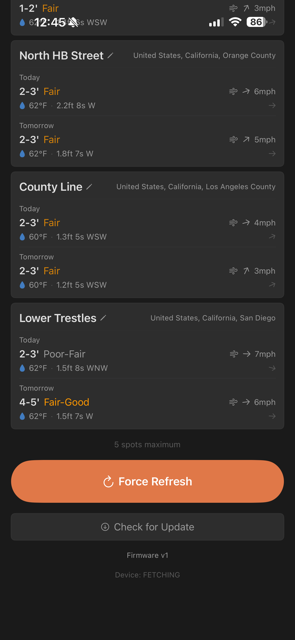 Force Refresh
Water temperature is sourced from the nearest NOAA ocean buoy, matched by the GPS coordinates of your surf spot. Occasionally the nearest buoy is further away than ideal.
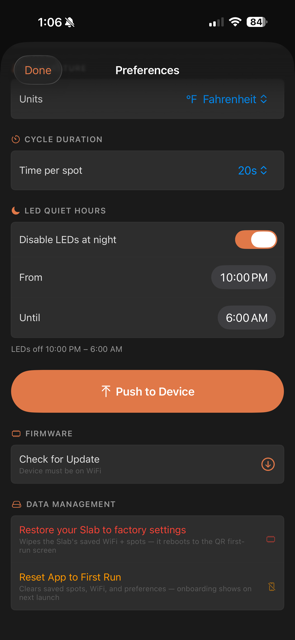 Quiet Hours
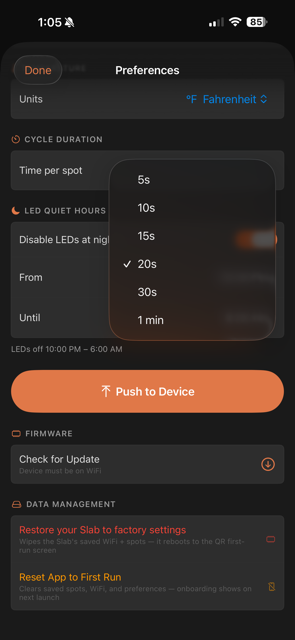 Cycle speed
Open the Yeah Buoy! app, connect to the device via Bluetooth, go to Preferences, update the WiFi credentials, and tap Push to Device. The device will save the new credentials and reconnect automatically.
Open the app and either:
After making changes, tap Push to Device to sync the new configuration. The device will reboot and start fetching data for the updated spot list.
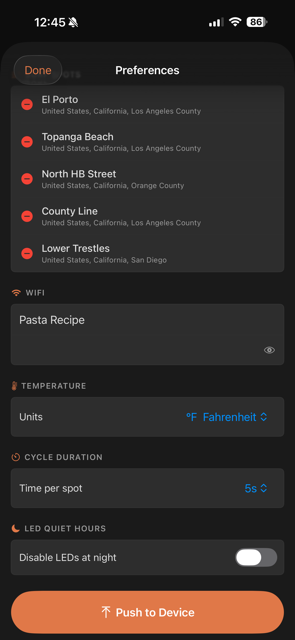 Manage spots
Tap the pencil icon next to any spot name on the main screen to give it a custom display label.
Labels are capped at 15 characters — that's all that fits on one line of the e-ink display.
After renaming, tap Push to Device to update what shows on The Slab.
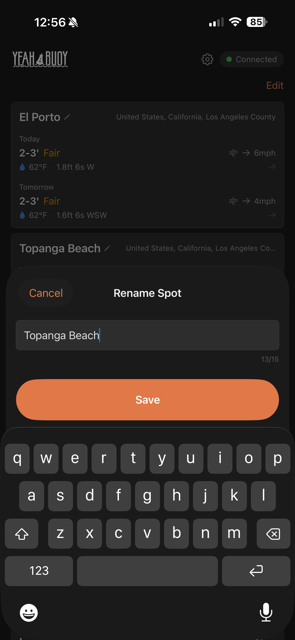 Tap pencil
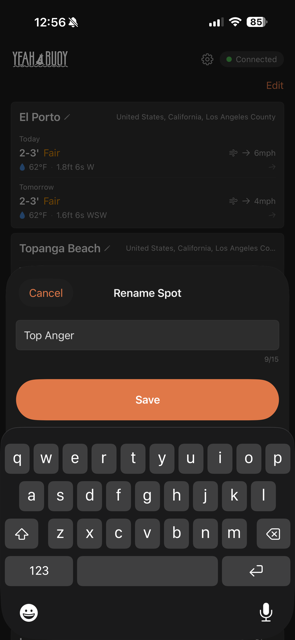 Enter name
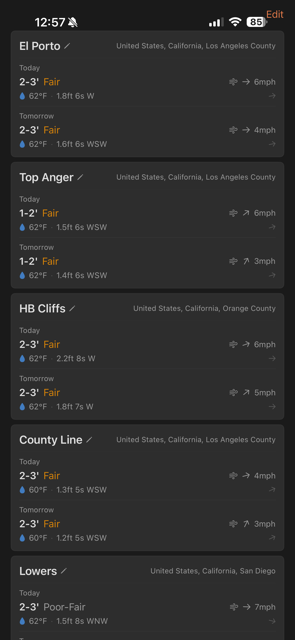 All renamed
There are two options inside Preferences → Data Management:
Restore your Slab to factory settings
Clears all saved settings on the device and reboots to the first-run
QR code screen. Your spots and preferences in the app are untouched.
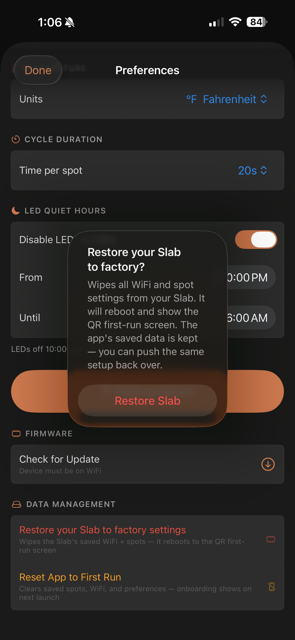 Restore Slab
Reset App to First Run
Wipes all spots, WiFi credentials, and preferences from the app and
returns it to the onboarding wizard. Use this if you're starting over
from scratch.
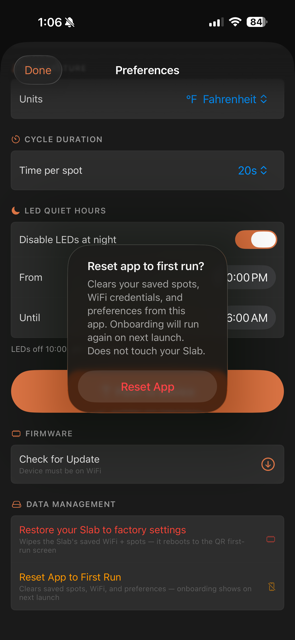 Reset App
You can also re-flash firmware via USB using Arduino IDE with "Erase All Flash Before Sketch Upload" enabled.
Yeah Buoy! supports over-the-air (OTA) firmware updates over WiFi:
Check for Update