Surf forecast · e-ink display

User Guide

Everything you need to get The Slab — your Yeah Buoy! hardware, hand-built on premium walnut — set up, understand what it's showing, and fix it when it misbehaves.

Setup Guide

Follow these steps in order. From plugging in The Slab to a cycling forecast: about two minutes.

1

Download the app

Search for Yeah Buoy! on the App Store, or visit zonelab.app/yeahbuoy.

📱 The app requires iOS 16 or later.
2

Power on The Slab

Plug The Slab into USB-C power or make sure the battery is charged. On first boot a lone QR code appears on the e-ink screen — that's intentional. The three LEDs cycle Red → Yellow → Green about once a second while it waits for you.

3

Open the app — it will walk you through setup

The app launches into a five-step setup wizard:
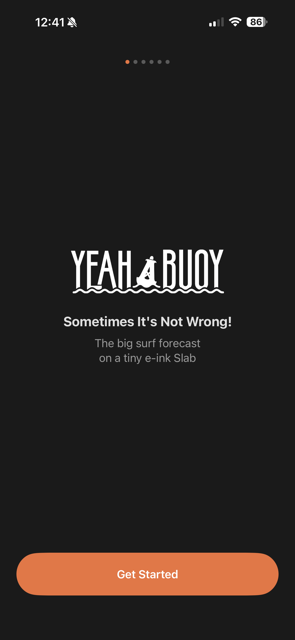
1
Welcome
A quick intro to the device and what you're about to do
Welcome / Get Started intro screen
2
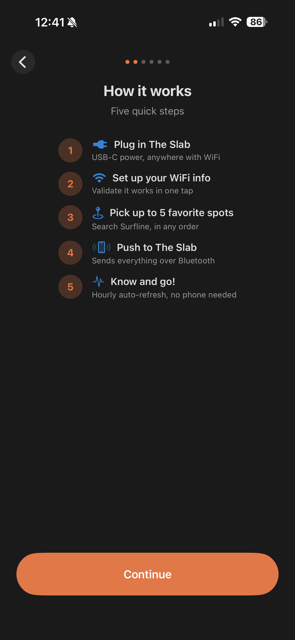
How it works
A visual overview of the five steps you're about to do
How It Works overview screen
3
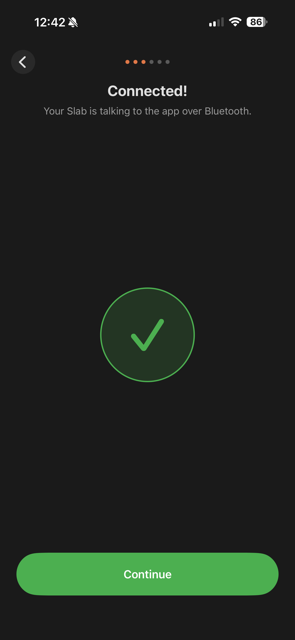
Plug In & Connect
Power on The Slab — the app finds it over Bluetooth automatically
The Slab found and connected via Bluetooth
4
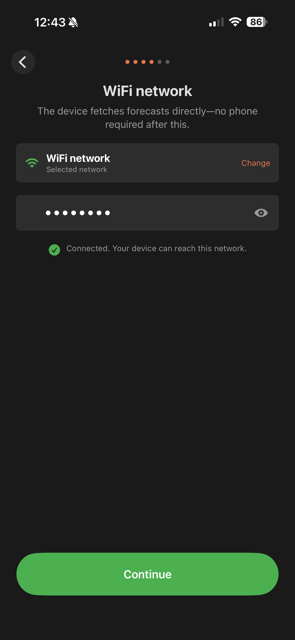
WiFi
Tap your network from a list The Slab scans for you, enter the password — credentials are validated live before saving
Select WiFi network from device-scanned list
5
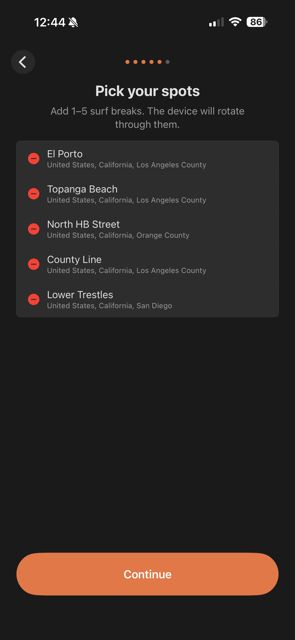
Spots
Search Surfline and add 1–5 surf breaks
Spots selected and ready to push
6
Push to The Slab
Send everything over Bluetooth — The Slab reboots into WiFi forecast mode
Setup complete — The Slab is ready
⚙️ Quiet Hours, temperature units, and cycle speed live in Preferences after onboarding — tap the gear icon on the main screen.
4

Wait for the first fetch

After setup the device connects to WiFi, syncs time, and fetches forecasts from Surfline. This takes about 20–30 seconds. You'll see "Connecting to WiFi…" then "Fetching forecasts…" on the display. Once data loads, the forecast starts cycling automatically.
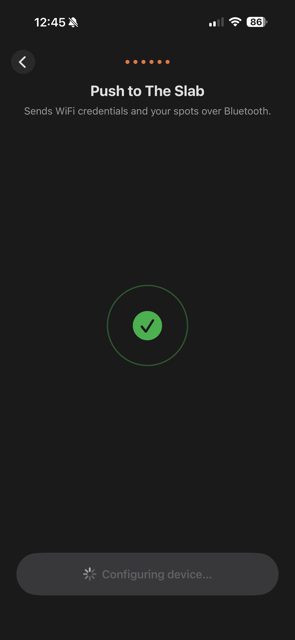
App sending data to The Slab over Bluetooth
5

You're done

Yeah Buoy! refreshes forecasts every hour over WiFi — no app needed after the initial setup. If you move the device to a new location or change your WiFi, just open the app again and push updated settings.

⚠️
2.4 GHz WiFi only. The ESP32 chip inside Yeah Buoy! does not support 5 GHz networks. If your router broadcasts both bands with the same name, make sure to connect your phone to the 2.4 GHz band when entering credentials, or use a separate SSID for the 2.4 GHz band.

Reading the Forecast

The display shows three lines of forecast data. It cycles through each spot automatically — today's forecast first, then tomorrow's, then on to the next spot.

Spot 1 · Today
Spot 1 · Tomorrow
Spot 2 · Today
Spot 2 · Tomorrow
↩ repeat
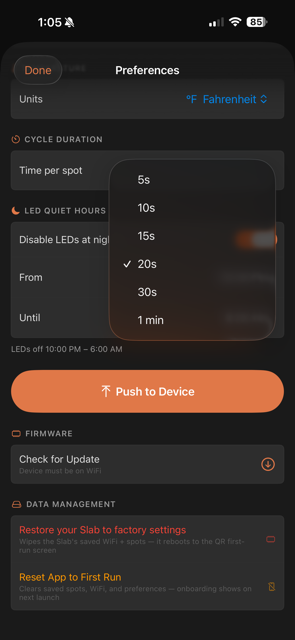
The time each slide is shown is configurable in the app under Preferences → Cycle Duration. Default is 5 seconds.
RINCON · TODAY
3-4' Fair · ↗ NW 8mph · 58°F
↙ 1.8ft  15s  SSW

250 × 122 px e-ink display

1

Spot name · Day

The spot's display name (or custom label) and whether this is today's or tomorrow's forecast.

2

Wave height · Rating · Wind · Water temp

Wave face height in feet, surf quality rating, wind direction with arrow and speed, and surface water temperature.

3

Primary swell

The dominant swell: height in feet, period in seconds, and the compass direction it's coming from, with an arrow.

Field reference

3-4'
Wave height. Estimated surf face height in feet. A range means conditions varied during the forecast window. A single number means consistent size.
Rating
Surf quality. Surfline's overall assessment: Poor → Poor-Fair → Fair → Fair-Good → Good → Good-Epic → Epic. Matches the LED color.
NW 8mph
Wind. The compass direction the wind is blowing from, followed by speed in mph. The small arrow points in the direction the wind is moving toward.
58°F
Water temperature. Surface water temp sourced from the nearest NOAA buoy. Can be shown in °C — change the unit in app Preferences.
1.8ft
Swell height. Height of the primary swell at the buoy, in feet.
15s
Swell period. Time in seconds between wave sets. Longer period = more energy, more powerful waves. 15s+ is considered solid groundswell.
SSW ↙
Swell direction. The compass direction the swell is arriving from. The arrow points in the direction of travel (toward shore).
Today
Today's forecast reflects current or near-current conditions — the most recent Surfline rating available at the time of the last fetch.
Tomorrow
Tomorrow's forecast is the 6am dawn-patrol window — good for planning the next morning's session.

Rating scale

Poor Poor-Fair Fair Fair-Good Good Good-Epic Epic

Ratings are sourced directly from Surfline and updated every hour. They factor in wave height, period, shape, and local knowledge for that break.

What the Lights Mean

Three LEDs on the device give you an at-a-glance surf report from across the room. The pattern matches the current slot's surf rating.

Poor
Not worth it. Messy, weak, or otherwise unappealing conditions.
Poor–Fair
Getting there. Some rideable waves, but inconsistent or lacking power.
Fair
Decent session. Average surf with some good moments.
Fair–Good
Above average. Fun, consistent waves — worth the drive.
Good
Go surf. Clean, powerful, well-shaped waves.
Good-Epic / Epic ✦
All three LEDs flash. Drop everything. This is as good as it gets.

System states

First run. Device has never been configured. LEDs cycle Red → Yellow → Green every second. Scan the QR code on the display to get started.
Setup mode. Yellow LED solid. Device is in Bluetooth pairing mode, waiting for the app to push WiFi and spot settings.
Quiet hours. All LEDs off. The display is still cycling forecasts, but LEDs are suppressed during the configured quiet window.
🌙
Quiet hours only suppress the LEDs — the e-ink display keeps cycling forecasts throughout. Configure quiet hours in Preferences → LED Quiet Hours.

Troubleshooting

Common issues and how to fix them.

The app can't find my device via Bluetooth
  • Make sure the device is powered on and the LED is lit.
  • Move your phone within 1–2 metres of the device.
  • Check that Bluetooth is enabled on your iPhone (Settings → Bluetooth).
  • The device must be in setup mode to be discovered — press the small button on the side of the device once to enter setup mode. The yellow LED will turn on solid.
  • Force-quit the Yeah Buoy! app and reopen it, then tap Scan again.
  • Try toggling Bluetooth off and back on.
Once the device has been configured and is in WiFi mode, it is still discoverable — you don't need setup mode for routine pushes.
The display shows "WiFi connect failed"
  • Double-check the SSID and password you entered in the app. Passwords are case-sensitive.
  • Make sure the network is 2.4 GHz. The device cannot connect to 5 GHz networks.
  • Try moving the device closer to your router for the initial connection.
  • Some enterprise networks (school, office) with captive portals won't work.
If your router has a combined 2.4/5 GHz network with a single SSID, check your router settings. You may need to separate the bands or force the 2.4 GHz connection.
The display shows "Fetch failed" or forecasts aren't loading
  • Make sure the device is connected to WiFi (check your router's device list).
  • The Surfline API sometimes has brief outages. The device will retry automatically on the next hourly cycle.
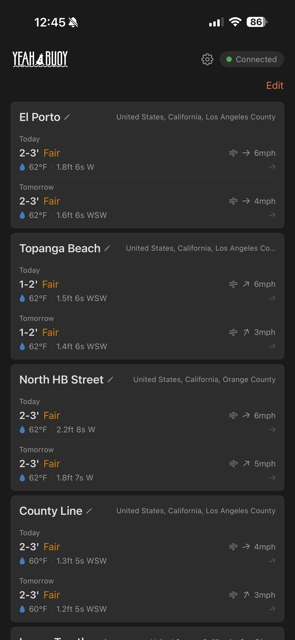
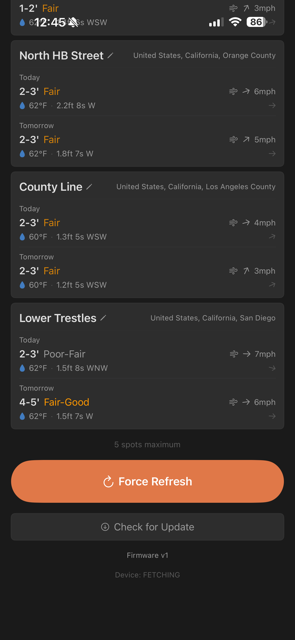
  • Open the app → connect → tap Force Refresh to trigger an immediate fetch.
  • Verify the surf spots you added are real Surfline locations (try searching again in the app).
Force Refresh option in the app Force Refresh
The display is not updating / stuck on old data
  • The device fetches new data once per hour. Check the time of the last successful fetch (the display will briefly show "Fetching forecasts…" each hour).
  • E-ink displays only redraw when the content changes — if conditions are identical to the previous fetch, the screen won't visibly refresh, but the data is current.
  • Use Force Refresh in the app to trigger an immediate update.
Water temperature looks wrong

Water temperature is sourced from the nearest NOAA ocean buoy, matched by the GPS coordinates of your surf spot. Occasionally the nearest buoy is further away than ideal.
  • Temperature is always shown for the current reading (not a forecast).
  • If the buoy is far offshore, temps may differ slightly from the beach.
  • Switch to °C in Preferences → Temperature → °C Celsius if you prefer metric.
The LEDs are always off
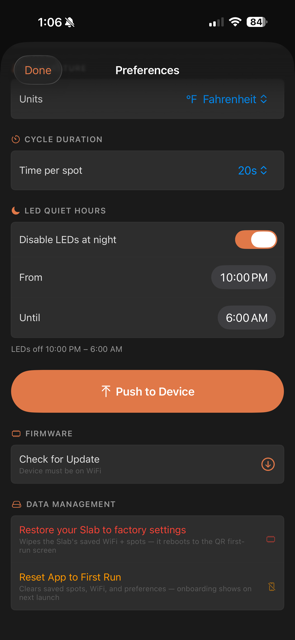
  • Check whether Quiet Hours is enabled and if you're currently inside the quiet window. Open the app → Preferences → LED Quiet Hours.
  • The LEDs turn off between forecast cycles. They only light up when a slide is actively displayed.
  • During WiFi connection and data fetching, LEDs are off by design.
LED Quiet Hours setting in Preferences Quiet Hours
Cycle Duration setting in Preferences Cycle speed
I moved house / changed my WiFi password

Open the Yeah Buoy! app, connect to the device via Bluetooth, go to Preferences, update the WiFi credentials, and tap Push to Device. The device will save the new credentials and reconnect automatically.

I want to add or remove a surf spot

Open the app and either:

  • Tap the + button to add a new spot (up to 5 total).
  • Tap Edit then the red minus button next to a spot to remove it.

After making changes, tap Push to Device to sync the new configuration. The device will reboot and start fetching data for the updated spot list.
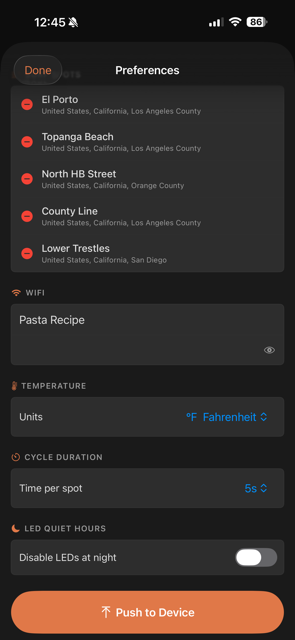
Spot management options Manage spots
How do I rename a spot on the display?

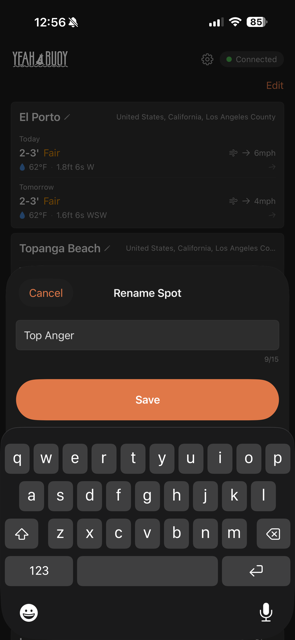
Tap the pencil icon next to any spot name on the main screen to give it a custom display label.

Labels are capped at 15 characters — that's all that fits on one line of the e-ink display.

After renaming, tap Push to Device to update what shows on The Slab.
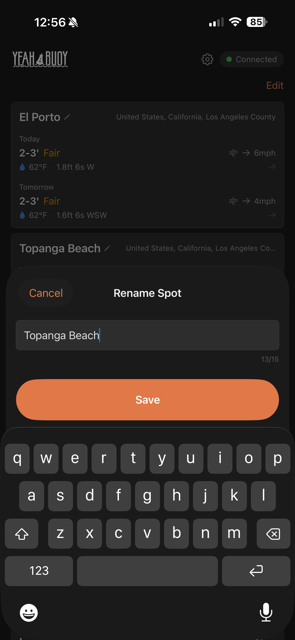
Tap the pencil icon to rename a spot Tap pencil
Type a custom name Enter name
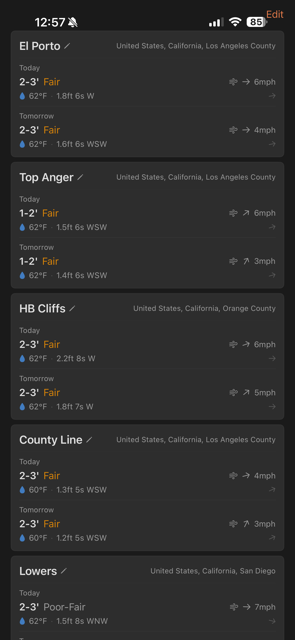
All spots renamed on the main screen All renamed
How do I factory reset the device?

There are two options inside Preferences → Data Management:

Restore your Slab to factory settings
Clears all saved settings on the device and reboots to the first-run QR code screen. Your spots and preferences in the app are untouched.
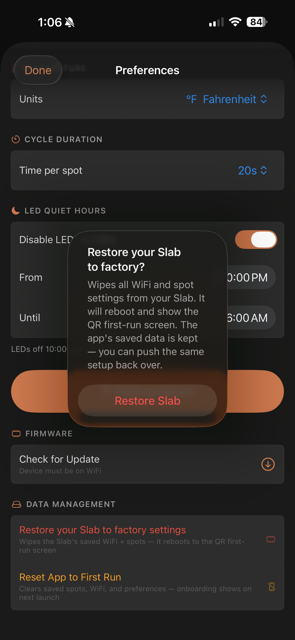
Restore your Slab to factory settings Restore Slab

Reset App to First Run
Wipes all spots, WiFi credentials, and preferences from the app and returns it to the onboarding wizard. Use this if you're starting over from scratch.
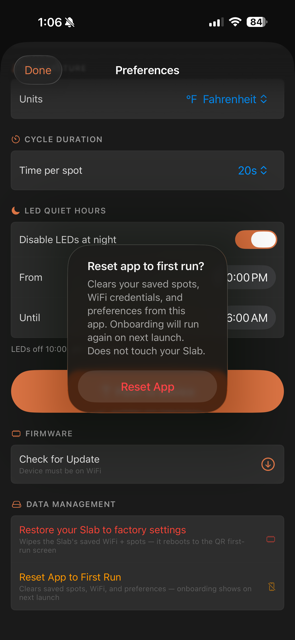
Reset App to First Run Reset App

You can also re-flash firmware via USB using Arduino IDE with "Erase All Flash Before Sketch Upload" enabled.

Restoring The Slab erases WiFi credentials and spot data from the device. You'll need to push settings again from the app.
How do I update the firmware?

Yeah Buoy! supports over-the-air (OTA) firmware updates over WiFi:

  • Open the app and connect to the device.
  • Go to Preferences → Firmware → Check for Update.
  • If an update is available, it will download and install automatically. The device will reboot when done. Your settings are preserved.
OTA updates require the device to be connected to WiFi. Make sure the device is in WiFi mode (not setup mode) before checking for updates.
Check for Update in Preferences Check for Update
The device worked before but the display is blank
  • E-ink displays retain their image even when powered off. A blank screen usually means the display was cleared or the device is in an intermediate boot state.
  • Wait 30 seconds after powering on — the splash screen and forecast load takes a moment.
  • Check the serial output if you have a USB connection to diagnose boot errors.
  • Try a factory reset as a last resort.